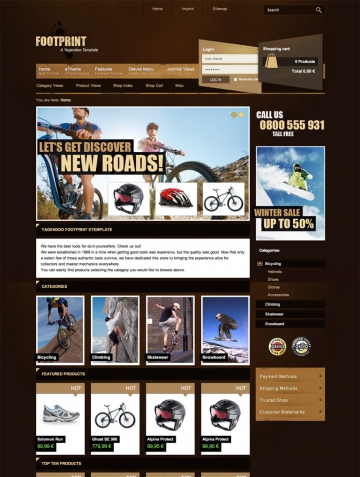
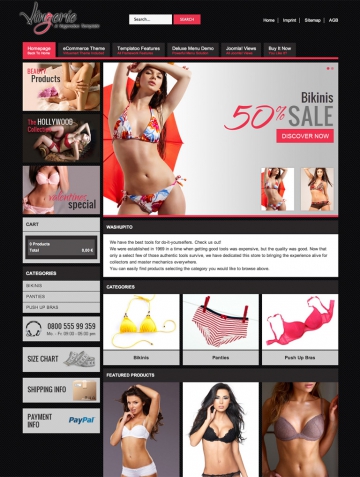
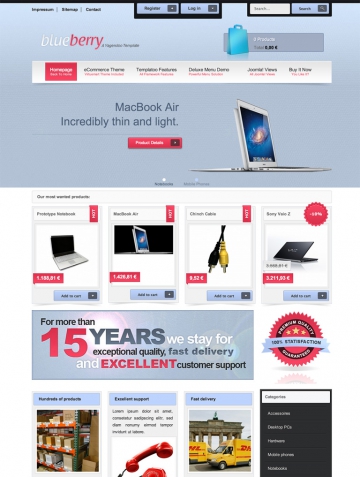
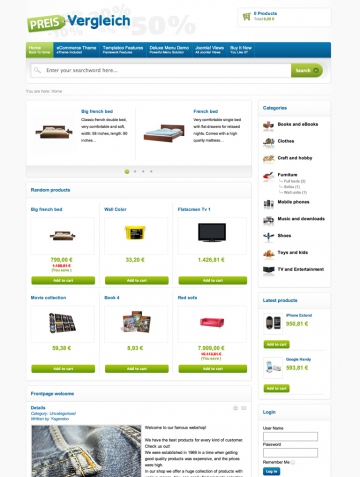
Joomla! Templates, Virtuemart Themes & Many More

Data Security Instant download after payment 1st Virtuemart Template Provider

Become a Yagendoo Facebook fan and save 10% on your next order! All infos you´ll find here!

System Requirements

Joomla! version

All products by Yagendoo have been designed for the exclusive use with Joomla! 1.5 or later editions.

PHP Version

Minimum requirement PHP5! The primary development platform for all add-ons by Yagendoo is PHP version 5 or higher. If you use PHP4, this won't be a problem, as your web host usually allows you to update the PHP version to PHP5.

Virtuemart Version

Requires Virtuemart 1.1.3 or a higher version from the 1.1.x series! The primary development platform for all add-ons by Yagendoo is Virtuemart version 1.1.3 or higher.

Installing the Yagendoo VM module for random products is really easy and takes just a few steps. In the following, you will learn how to install and commission the Yagendoo Virtuemart module for random products after downloading it.

1. Installing Yagendoo VM Random

Installation

a) Unzip the package you have downloaded via the download link after the purchase to a local folder on your pc. It contains the module package and some files with information.

b) Navigate into your Joomla! backend to the Joomla! installer and select the module package you have downloaded to your PC. Install it using Joomla! installer. If the installation has been successful, a respective message will appear.

Note: As some servers are not 100% compatible with Joomla!, please check the CHMOD rights of the files and folders. All folders have to be set at a CHMOD of 755 and all files at a CHMOD of 644.

Front View of the Random Module

2. Overview on Yagendoo Virtuemart Random

On the right, you see a possible view of the module. There are many configuration options which will be presented in detail in the following. You can choose, for example, a graphic display for discounted products or sold-out products. You can freely choose the display.

It is possible to enable or disable almost all elements in Yagendoo Virtuemart, e.g. the SKU, the description, the images.

You can enter whether the products to be displayed are to be from certain categories or if they are to be random products from your entire Virtuemart Shop. If you think a certain product is particularly important, you can enter those product IDs whose corresponding products you always want to show.

3. Basic Configuration of Yagendoo Virtuemart Random

In your Virtuemart backend, navigate to the menu item Extensions -> Module. Here, you will find the "Yagendoo Virtuemart Random Products" module.

Amongst others, you can make the changes mentioned above here. Next to the module suffix, you find an input option for the number of columns in which the products are shown and the number of products to be shown. You can then select the categories in which products are to be shown randomly.

Now you have the following selection fields for enabling and disabling the following elements: the SKU, the short description, the price, the discount (if existing), the Addtocart button (button to add the product to the cart), the manufacturer, and the seller.

As last basic setting of the random products module, you can select whether you want to show the product image, its placement and its size.

4. Enhanced Configuration of Yagendoo Virtuemart Random

Configuring the Random Module

In the basic module parameters, you can find the enhanced parameters.

First, you enter whether you want to display the image for the discount (badge). Then you can select the badge.

Afterwards, you can decide whether you want to show the sold-out badge and the badge to be used. By default, only one exists. If you want to create and use your own badges, please check the FAQs.

In the last field, you can enter the IDs of all the products you want to show at all times. Separate the IDs with a comma.

5. FAQs

The Yagendoo Virtuemart Module for random products does not look good and seems to be messed up.

It might happen that the template of your Joomla website overwrites the settings of the module.

The following trick might help you: Use FTP to download the main CSS file (often called "template.css") in the folder for css files (often called "css", "style" or "styles") in the /templates/YOUR-TEMPLATE/ folder.
Also, download the yagendoo_cart.css in the modules/mod_yagendoo_vm_random/assets/css folder.
Copy everything from the Yagendoo CSS to the end of the template CSS. If this does not work, repeat the process with other CSS files of your template. Afterwards, re-upload the changed template CSS file to the server.
This trick can also help you with other modules and components if they are not displayed correctly.

I would like to add my own badge for discounts. What do I do?

You need to execute the following two steps:

1. Copy the new badge: Copy the image you have created (in PNG format) to modules/mod_yagendoo_vm_random/assets/img/badge_discount. Ensure that the name of your image file does not contain special characters (e.g. empty spaces).

2. Change the code: If you now select this image via the module parameters (it will be detected automatically), you will probably find that the placement and the angle of the writing on the image are incorrect.

You can make changes in yagendoo_image.php in the modules/mod_yagendoo_vm_random/lib/ directory on lines 84-86. In the following, you see these lines:

Code for Changing the Discount Badge

Simply change the name of the image in line 84. In line 85, the first value (30) stands for the font size, the second value (45) for the angle, the third value (30) for the distance to the left and the fourth value (90) for the distance from the top. You might have to play around with these parameters to achieve the correct display. Do not forget to re-upload the changed file to the server.

I would like to add my own sold-out badge. What do I do?

This is pretty simple. Copy the desired image to modules/mod_yagendoo_vm_random/assets/img/en (for English) and any language you wish. Thus, you can create the badge in several languages. Please ensure that the image has the same name in all directories.